
App Guide
How to Play
Start reading, explore Quest and understand the controls at your own pace.
Bible Reading
1. Read the Bible
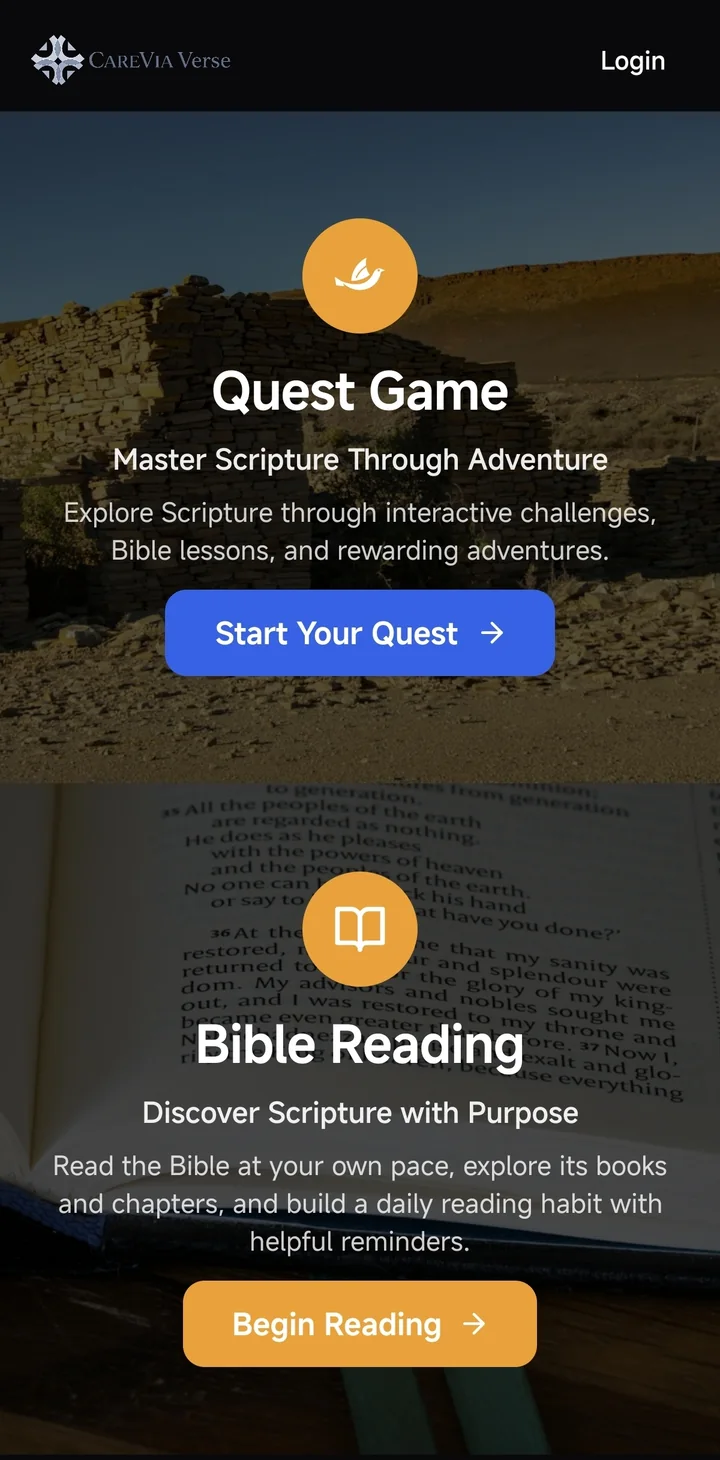
Choose Begin Reading on the first screen. Bible Reading is free and ad-free across all 66 books.
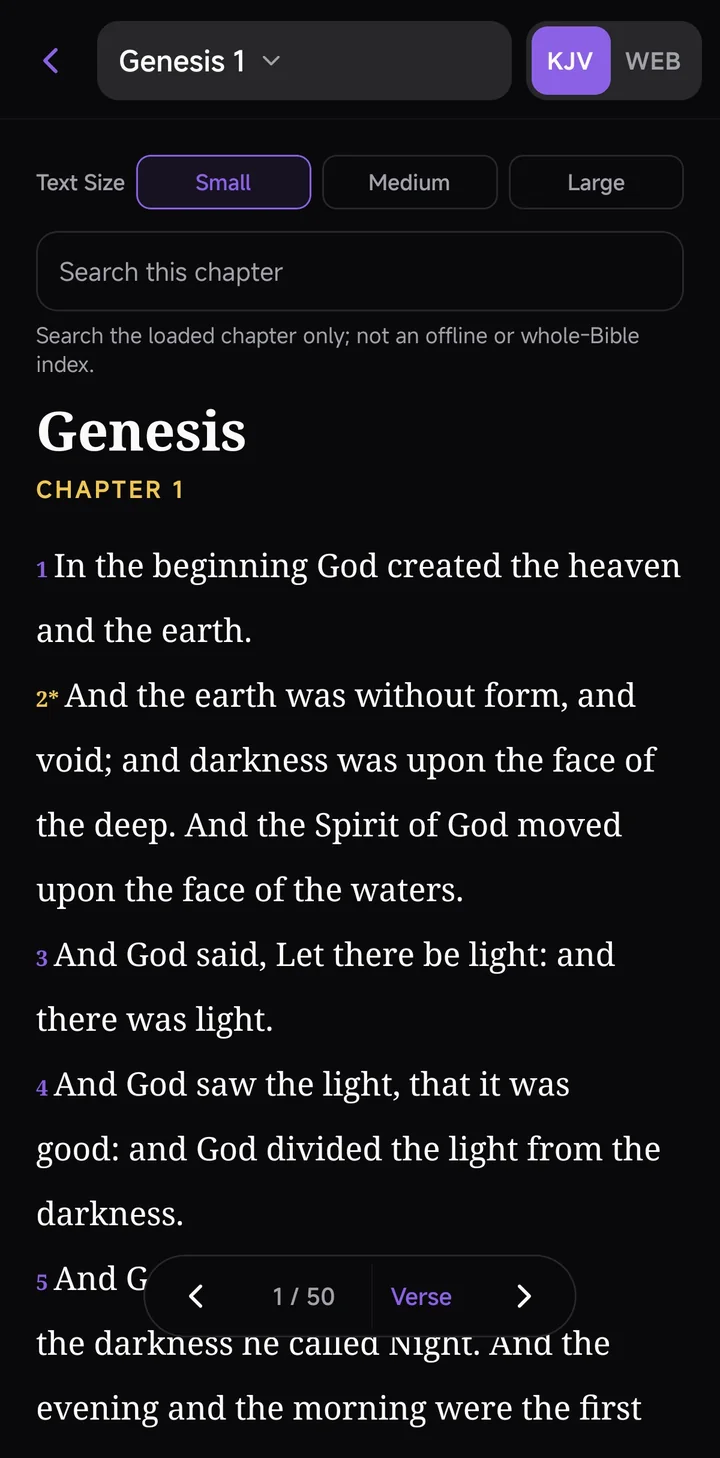
- Tap the book and chapter at the top of the reader to choose a passage.
- Use Previous chapter and Next chapter to move through Scripture, or Go to verse to jump within the chapter.
- Use Text Size to choose a comfortable size, and Search this chapter to find words in the chapter you are reading.
The bottom menu offers Home, Library, Notes, Saved and Profile.
2. Choose KJV or WEB
Tap KJV — King James Version or WEB — World English Bible at the top of the reader. WEB is the name of a Bible translation. Switching keeps your place in the passage.
3. Reading as a guest or signed in
Guests can read any chapter without an account. Guest reading lasts for the current session; reopening the app starts fresh, and notes, bookmarks and highlights are not saved.
Signed-in readers can save bookmarks, highlights, private notes and reading progress, and return to them on later visits. Creating an account is optional for reading.
4. Bookmarks, highlights and notes
Tap a verse to open its menu.
- Bookmark saves the verse; Bookmarked means it is already saved.
- Under Highlight Verse, choose a color, or use Remove Highlight.
- Type in Write a private note, then tap Save note. Reopen the verse to edit or delete the note.
Find everything you saved under Notes and Saved in the bottom menu. Notes are private to your account. If the app shows a saving or retry message, let it finish before closing.
5. Music and sound
Optional background music is free for signed-in players in both Reading and Quest. There is no music subscription.
- Reading: open Profile, then Music & Sound.
- Quest: open Profile → Settings → General Settings, then Music & Sound.
Turn Music on or off, and use Previous Song and Next Song. Music plays while the app is open and stops when you leave it. Sound Effects, Answer Tap Sounds and Sound Effects Volume are separate from music.
Bible Quest
6. Start your Quest
Sign in and choose Start Your Quest. The bottom menu has five tabs:
- Home — your Quest welcome page, rewards and resources.
- Map — the lesson journey for the selected book.
- Books — every book and its lessons.
- Quests — Daily Quests, Weekly Challenges and your Day Streak.
- Profile — your Adventurer Profile, Inventory and Settings.
7. Lessons and mini-games
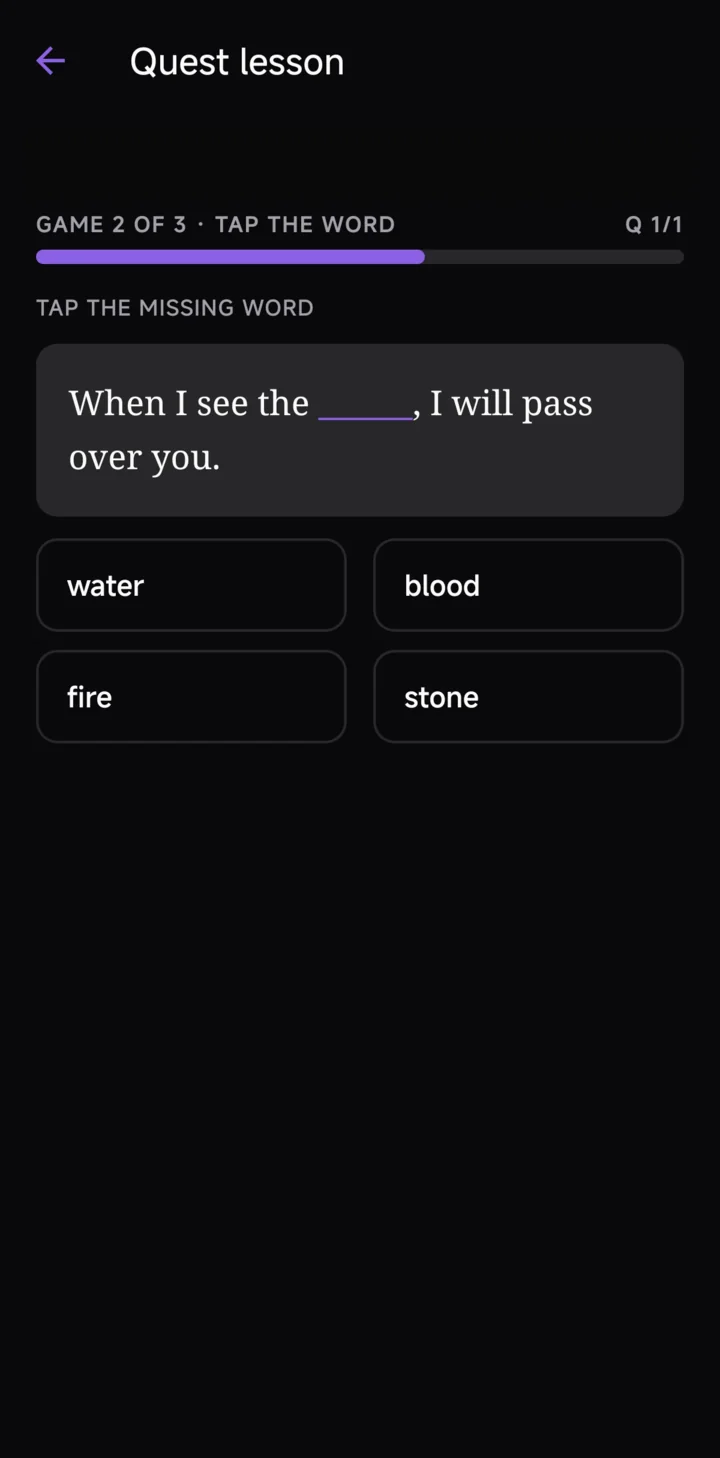
Every Bible book has seven regular lessons, and each lesson has three mini-games, such as quizzes, Memory Match and word activities. Read each activity’s instructions, answer, and continue.
- On the Map or in Books, select an available lesson, then tap its Start action.
- A graded lesson attempt has a 30-minute timer.
- Reach an 80% overall score across the three mini-games to pass.
- Wait for your result. Your journey updates once the result is confirmed.
8. Book Review Challenge
After you finish all seven regular lessons in a book, a Book Review Challenge opens for that book. It is an extra activity; it never replaces one of the seven lessons.
- 20 questions drawn from the book: 8 Quiz, 6 Missing-Word and 6 Scenario questions.
- Answer 16 or more correctly (80%) to pass.
- The 30-minute timer starts only when you tap Start Challenge. You can watch or skip the short introduction first; it does not use your time.
- Passing the review unlocks the next Bible book. Revelation’s review completes the journey through all 66 books.
- Book Reviews are about progression only: they do not award XP, coins, gems, hearts or chests. Rewards come from regular lessons.
- If you do not pass, review the book and try again. Your regular lessons and the rewards you already earned stay exactly as they are.
After lesson seven, return to the same book’s Map and look for its ready review. A completed review shows a checkmark and Replay Review: you can practice again without additional rewards or losing completion. Passing takes you to the next book’s Map; a failed review keeps you in the current book. Revelation celebrates the end of your journey.
Each book’s introduction has its own original instrumental music, lasting no longer than 20 seconds with a smooth fade. Skip, leave, or start the challenge to stop it immediately. It never continues over the questions, and Music Off is always respected.
9. Choose a book and continue your journey
Use the Bible book selector at the top of Books to choose from all 66 books in Bible order and view that book’s seven lessons. You can browse locked books, but their lessons remain locked until you meet the requirements. Switch between Books and Map to keep exploring the selected book.
On Quest Home, your Player Level appears directly below Your Progress. It uses the same earned XP and level as before. Profile keeps your Inventory and Settings.
10. Hearts and attempts
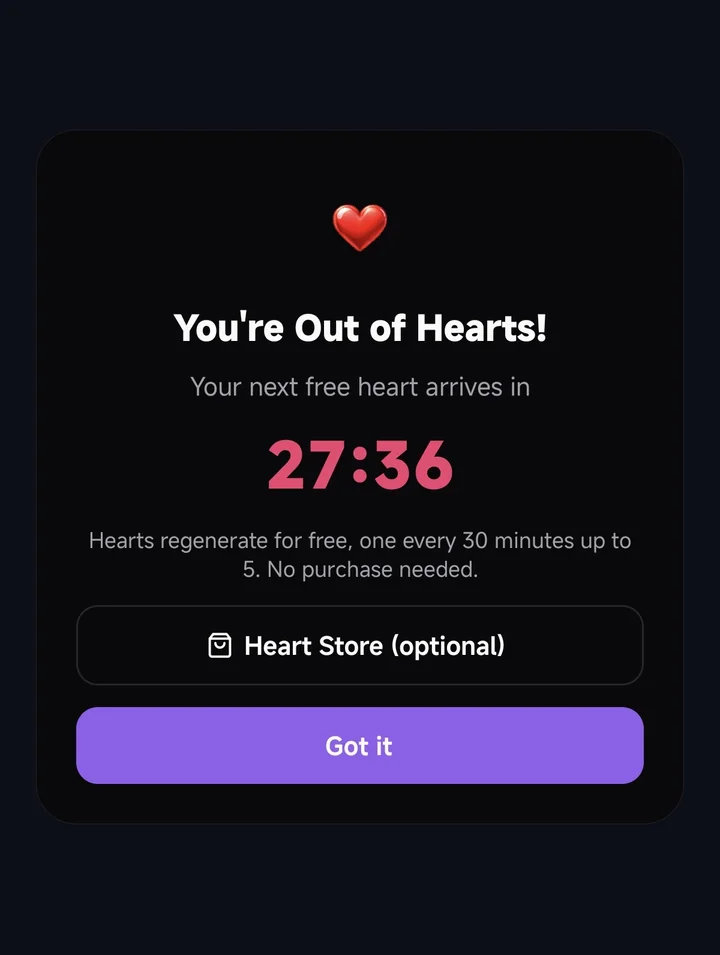
You can hold up to five hearts. One free heart returns every 30 minutes until you are full again.
- Starting a graded attempt sets one heart aside.
- If you pass, the heart is returned to you.
- If you do not pass, or the timer runs out, that heart is used.
Tap a resource at the top of the screen to open Quest Wallet and see your hearts and the time until the next free heart. With no hearts left, you can simply wait; buying a refill is always optional.
11. XP, coins, gems and chests
Regular lessons and Quest activities earn XP, coins and gems. XP raises your level; coins and gems are spent in the in-game shop.
- Bronze Chest and Silver Chest are daily goals; the Gold Chest is a weekly goal. Each chest shows its requirement and reward in Profile → Inventory → Chests.
- Open a chest when the app shows it is ready.
- Daily Quests and Weekly Challenges add extra goals, and your Day Streak counts consecutive days of passing lessons.
Book Reviews are separate: they are about unlocking the next book, not about earning resources.
12. Replaying lessons and practice
You can replay any completed lesson as practice. A replay does not repeat the first-completion reward.
Training Grounds offers Trivia Quiz, Memory Match and Verse Builder, each with 30 practice challenges. Practice never costs hearts and does not award XP, coins, gems or Quest progress. A category refreshes 24 hours after you finish all 30.
13. Achievements and history
Open Home → Rewards for Achievements, Chests & Shop and Reward History.
- Achievements are grouped into Common, Rare and Major. When you claim one, it moves to Claimed Achievements; each achievement can be claimed once.
- Reward History lists your recorded rewards, purchases and spending. Clear History hides earlier entries from the list after you confirm; it does not remove anything you earned or bought.
14. Inventory, avatars and the Quest Store
Open Profile → Inventory for Chests, Shop and Equip. Browse avatars and cosmetics, check each item’s requirement or price, and equip items you own.
The optional Quest Store offers Heart Refill (back to five hearts), Small and Large Coin Packs (150 and 600 coins) and Small and Large Gem Packs (10 and 35 gems) through the App Store or Google Play where offered. Prices come from your store. If a purchase seems delayed, use Check status instead of buying again. No purchase is needed to read or play.
15. Leaderboards & Rankings
Profiles are private by default and joining rankings is optional.
Find and add friends
- Open Quest → Profile → Friends & Leaderboards.
- Select Friends, then use Find players to search by username for eligible players.
- Select a player to view their permitted public profile, then tap Send Friend Request when available.
- The other player can Accept or Decline. Accepted requests appear in the Friends list.
Add friends from leaderboards
In Friends & Leaderboards, select Leaderboards and tap a player's name or ranking entry. Their profile shows Send Friend Request only when permitted, Request Sent for an outgoing request, Accept/Decline for an eligible incoming request, or Friends for an existing friendship. Your own profile and restricted profiles do not offer a new request.
Your privacy choices
To appear in public rankings, turn on both Public profile and Join rankings. Discoverable and Social features are optional.
Turning Discoverable OFF hides your profile from friend searches and discovery suggestions. You may still appear on public Quest leaderboards and rankings. Existing friendships are not removed.
A public leaderboard entry does not override friend-request privacy. New requests require an eligible discoverable public profile and Social features enabled for both players. Blocks and moderation restrictions still apply.
Open How Privacy Works for more information, or Manage Profile & Privacy Settings to change your choices. Pull down to refresh friends, requests and rankings without leaving the screen. Use report, block and appeal controls when needed, and never share passwords or sign-in links.
16. Your account
Open Profile → Settings → Account for your account details, Change Email Address, Support and Privacy contacts, the Privacy Policy, Terms of Use and this guide. Delete Account is there too; you will confirm your password before anything is removed. Choose optional emails in Announcements & Email.
To change your Account Name, open your Profile and tap the name displayed at the top. Enter your preferred name and select Save.
If no Account Name has been set, Profile appears as the default name. This private Account Name is separate from the public username used for leaderboards and social features.